

1
Create the integration
Sign in, click Create, and describe to Astro the task you want your integration to doStart with the goal in one line. Then list the steps in order. For example:Note:
- The integration signs in with credentials in an Agent profile.
{{.NAME}}and{{.DOCTOR_NOTE}}are inputs. You supply their values at execution time. See Inputs and outputs.
2
Work together with Astro
Astro will start building your integration. You can interact with Astro via the chat.Astro might open up a web browser in order to sign in to the portal and gain a better understanding of how to construct the integration.Astro might also ask you questions to clarify anything that requires your input.
3
Look at the graph
Astro, our builder, turns your description into a graph. Open it and read what it made.The graph holds two things:
- Nodes — one narrow subtask each. See Nodes.
- Transitions — the rules that pick the next node. See Transitions.
4
run it
Pick a profile, fill in the inputs, and start the execution.Click Run in the builder. The execution configuration opens. Set two things:
- Agent profile — the credentials and settings the execution uses. Select one, or create one now. See Agent profiles.
- Inputs — a value for every variable your instructions reference, such as
NAMEandDOCTOR_NOTE.
5
Watch it work
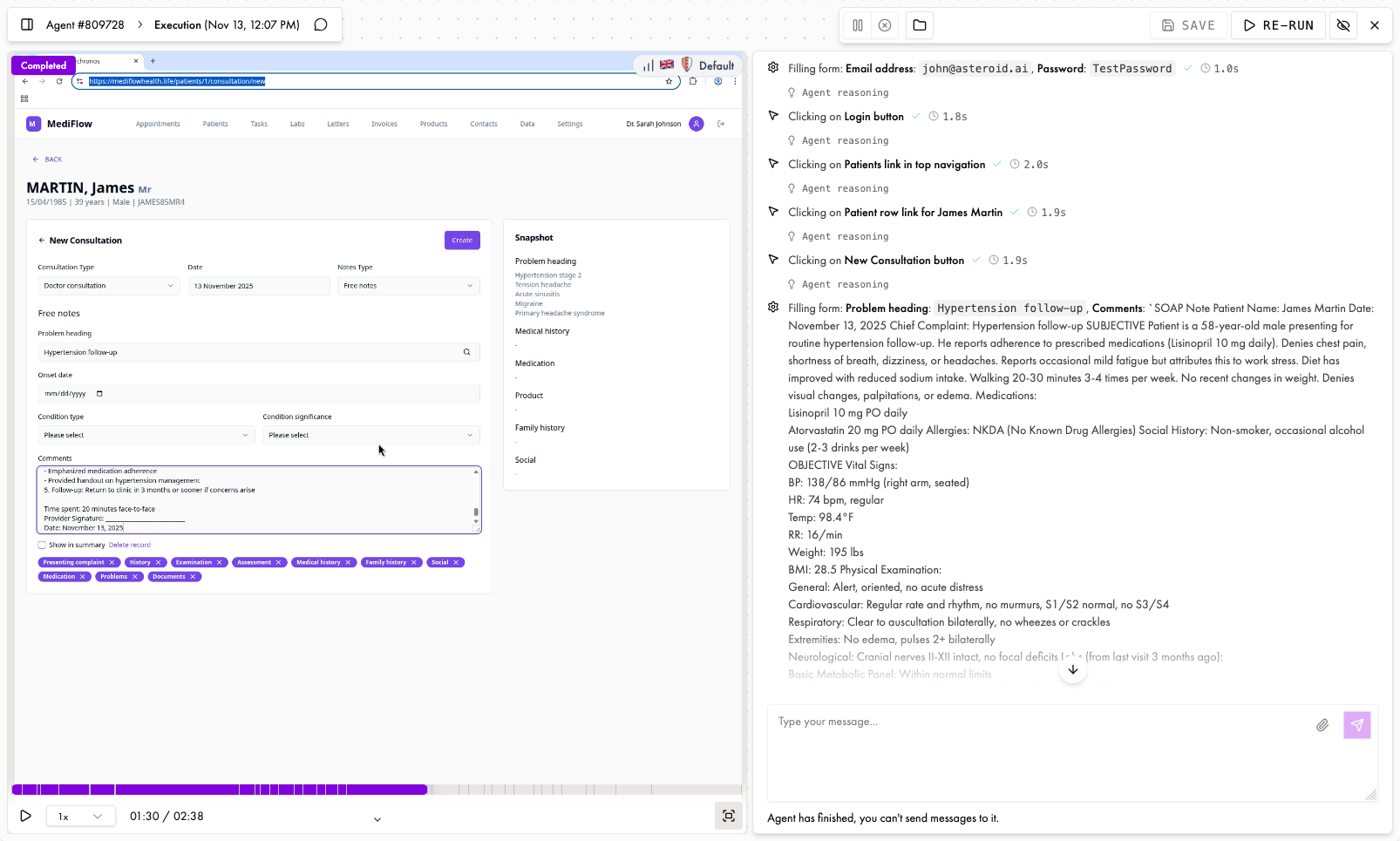
Execution page
The execution opens live. Watch the workflow drive the browser, step by step.
- Send the workflow a message while it works
- Pause or cancel the execution
- Take the browser and click in it yourself
completed, failed, or cancelled. See Executions and statuses.6
Read what happened
Open the execution on the Executions page. Read the timeline first. It shows each node the workflow entered and each action it took.Then read the result. The output node returns an outcome label and structured data. The label tells you which ending the workflow reached. See Inputs and outputs.Your first execution may not pass. That is normal, and the timeline shows you where it stopped. See Debug your workflows.
7
Iterate
You’re unlikely to make the perfect integration first time; you might have forgotten about an edge case or not accurately specified your task in some way.You can go back to Astro and explain any issues, and it will help you to fix them.See Improve your workflows for best practices on iterating on your workflows.Part of this will very likely involve scripting your workflow to make it cheaper, faster and more reliable.
8
Deploy
Once you have a workflow that you’re happy with, it’s time to deploy it. See Integrate for more information on how to go live.
Next
Write good instructions
Make the workflow do the same thing every time.
Test, iterate, publish
Ship a version your systems can call.
Call a workflow from your code
Start executions by API and read the results.
Workflows are graphs
Understand nodes, transitions, and why small steps win.