

Build
Create a workflow from a description, or from a document such as a PDF
Improve
Rewrite instructions and add the edge cases an execution exposed
Explain
Ask what the workflow does and how each node works
Debug
Open an execution and find out why it went wrong
Open Astro
Astro has two entry points.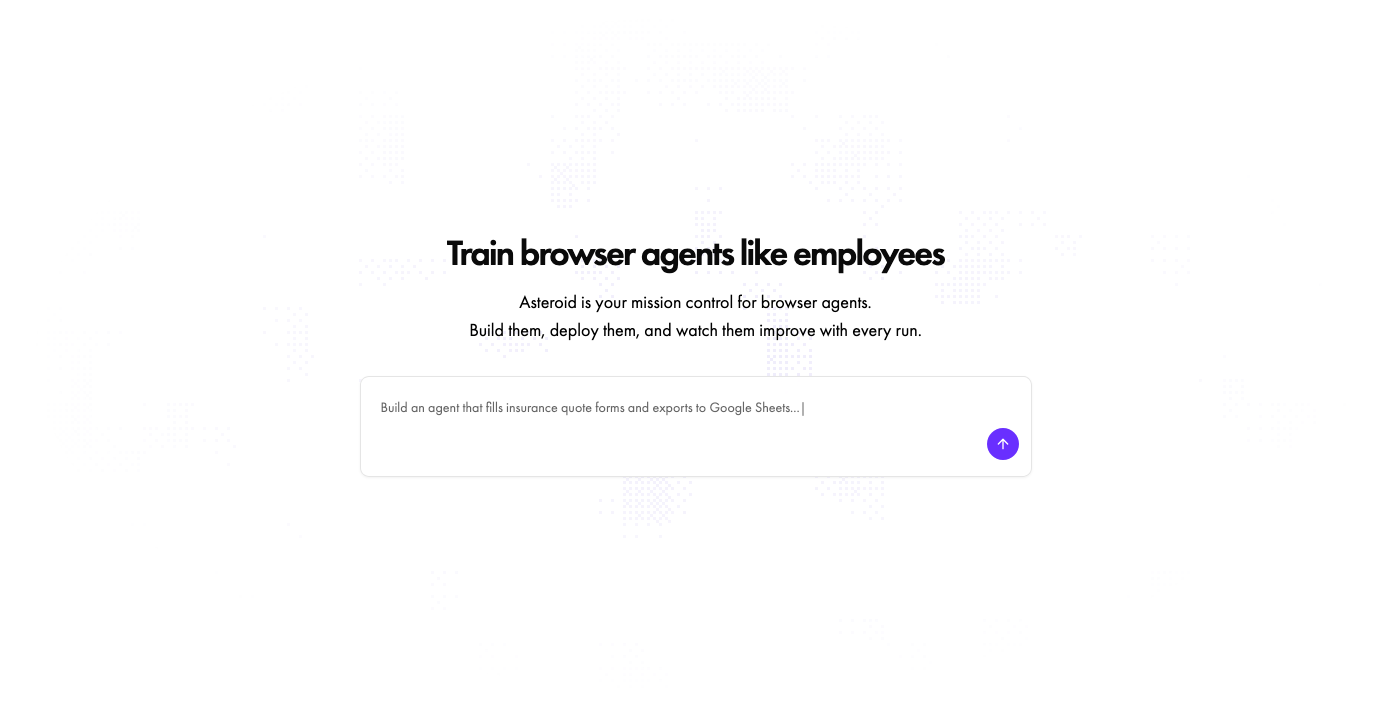
Create a new workflow
Click New workflow in the sidebar and type what you want in the chatbox.
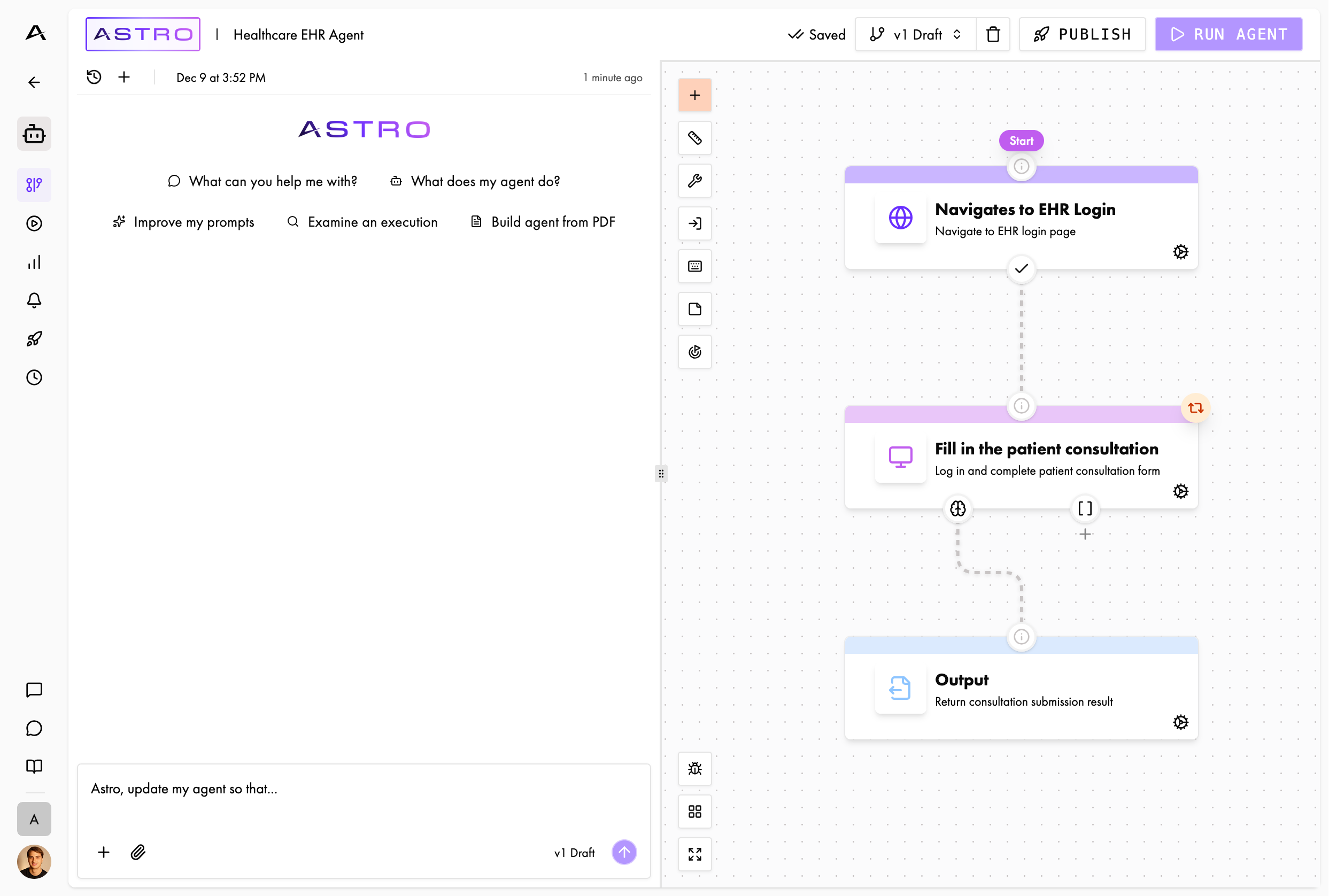
Work on a workflow you have
Click the Astro button in the top left of the Builder or Execution page.
How a session goes
1
Describe the task
Say what you want the workflow to do. Name the site, the steps, and the result you expect.
2
Astro builds
Astro reads the current workflow, then adds and edits nodes and transitions. Edits save as it makes them.
3
Review
Open the graph and read what changed. Every edit lands in the draft.
4
Refine
Tell Astro what to change. Ask for one change at a time, and keep the conversation going.
What Astro can change
Astro works on the workflow in front of it. It can:- Read, add, edit, rename, and delete nodes
- Rewrite node instructions and change node configuration
- Add and remove transitions between nodes
- Change workflow settings
- Start a live environment and drive it
- Write scripts that put reliable nodes on the fast path
- Start executions and read what happened in them
- Manage schedules, and attach secrets to profiles
- Offer buttons that open the profile and secret forms, so you type credentials in the platform, not the chat
- Validate the workflow
Astro edits the draft. An execution started from the API runs the published version. Publish the draft to make
your changes live — see Test, iterate, publish and Versions.
The live environment
Astro can start a live environment and work in it while you watch. A live environment is a real browser or a real Linux desktop. Take the mouse and keyboard at any time and show Astro the site yourself. Use it two ways:- Before you build. Click New workflow, then pick Browser or Linux on the Start blank card. Astro opens on an empty workflow and asks what you want to do. Explore the site together, and Astro learns the flow before it writes a single node.
- During an execution. The Execution page shows the browser live. Send the workflow a message, or take over the browser. Pause the execution, cancel it, or edit the graph while it runs.
Point Astro at an execution
Type@ in the chat input to mention an execution. A menu lists your recent runs. Pick one, and Astro reads
its timeline, its screenshots, and its reasoning.
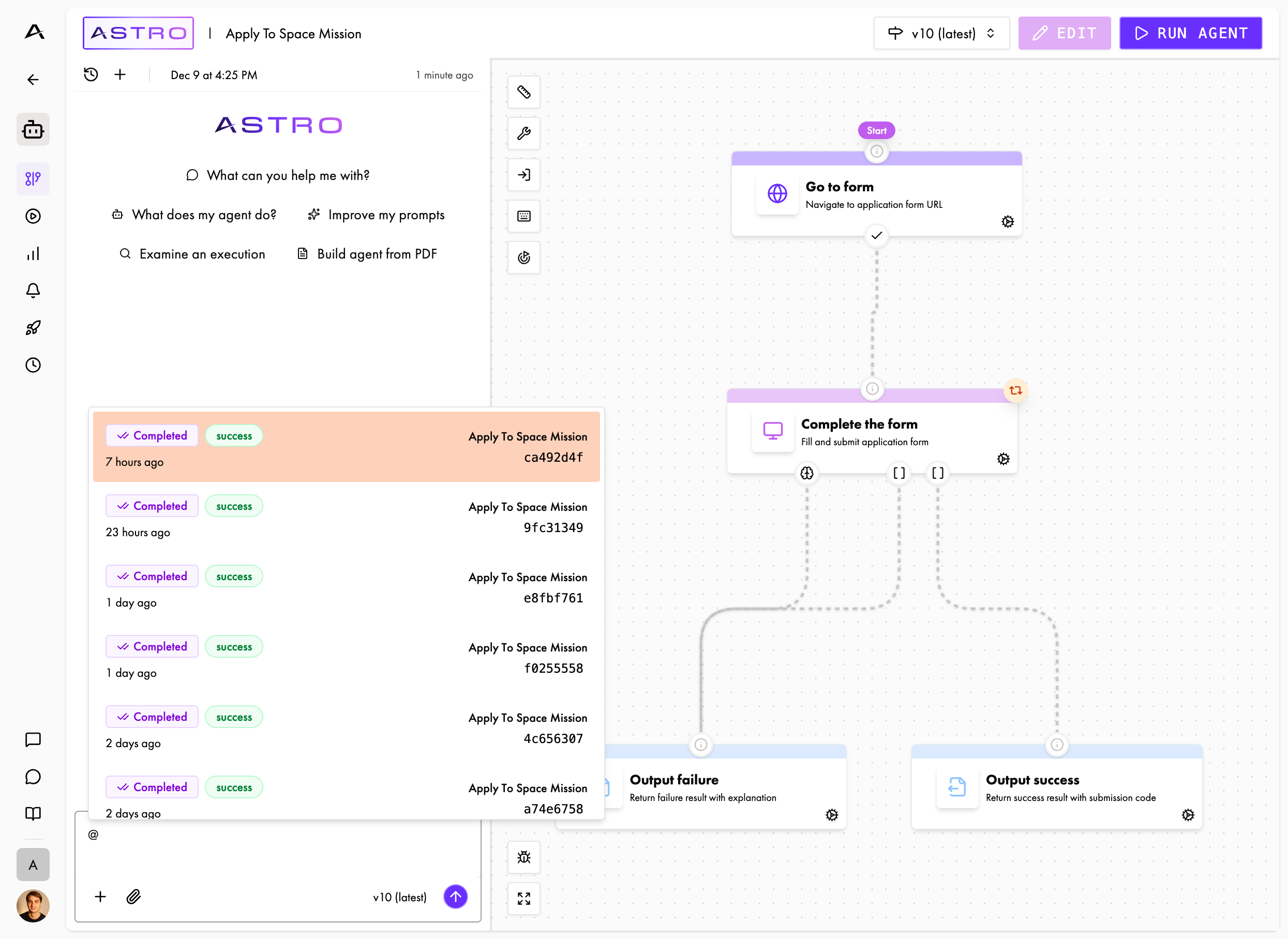
Mention an execution
Ask “Why did this fail?” and mention the execution. Astro finds the step that broke and proposes the fix.
Get good results from Astro
- Say the goal, not the symptom. Ask “how do I make the form filling more reliable?” Do not ask “make it better”.
- Give context. Name the node, the execution, or the error you are looking at.
- Change one thing at a time. Small requests are easy to review and easy to undo.
- Read the diff. Astro saves edits as it makes them, so check the graph before you publish.
- Run it after every change. An execution tells you more than a review does.
- Keep going. Tell Astro what was wrong with its first answer. The second one lands closer.
Conversations
One conversation belongs to one workflow. You can keep several conversations for the same workflow, each with its own history. Use the conversation selector to open a past conversation, pick it up where you left it, or delete it. Separate conversations keep separate topics apart. Build the happy path in one, and chase a failing run in another.Next
Write good instructions
What separates a node that works once from one that works every day
Test, iterate, publish
The loop between “it runs” and “it is ready”
Workflows are graphs
Why a workflow is a graph, and what that buys you
Nodes
The three node types and what each one does